Save at least one design in a standard project and add your business name in Brand. Allow any pending design previews to finish before sending.
Choose the designs to send
Open the event in Design and click the yellow Client proposal button in the top right. Select the saved options you want your client to review, then create the proposal link.
The composer can also include separate PNG designs. These are review images; uploading one here does not make it an editable design in the studio.
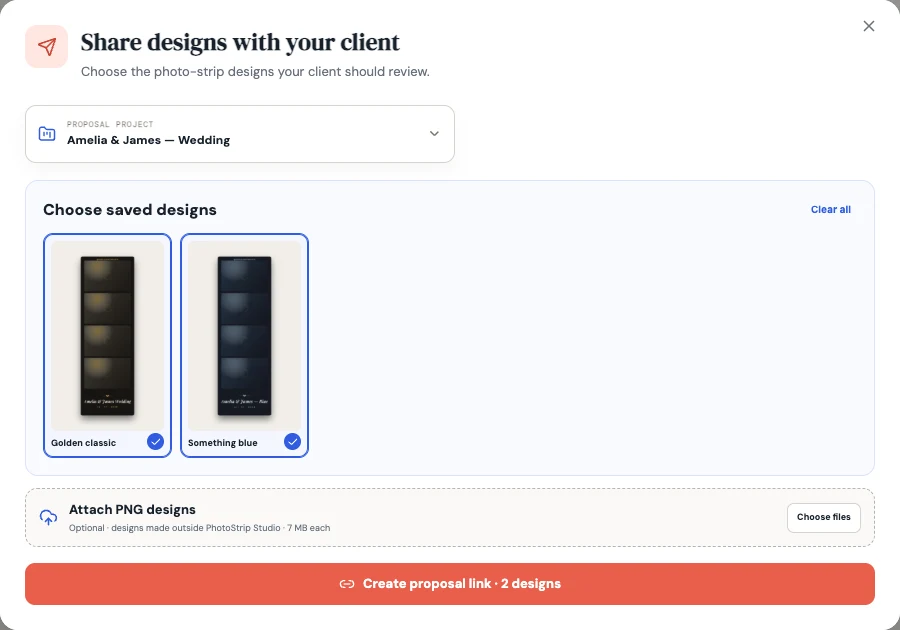
Choose which saved design options the client will see.
Create the proposal link after checking your selection.
Share the private review link
Copy the proposal link and send it to your client through your normal email or messaging channel. Preview opens the client view so you can check the branding and options first.
Your client does not need a PhotoStrip Studio account. Anyone with the link can access the review, so share it only with the intended people.
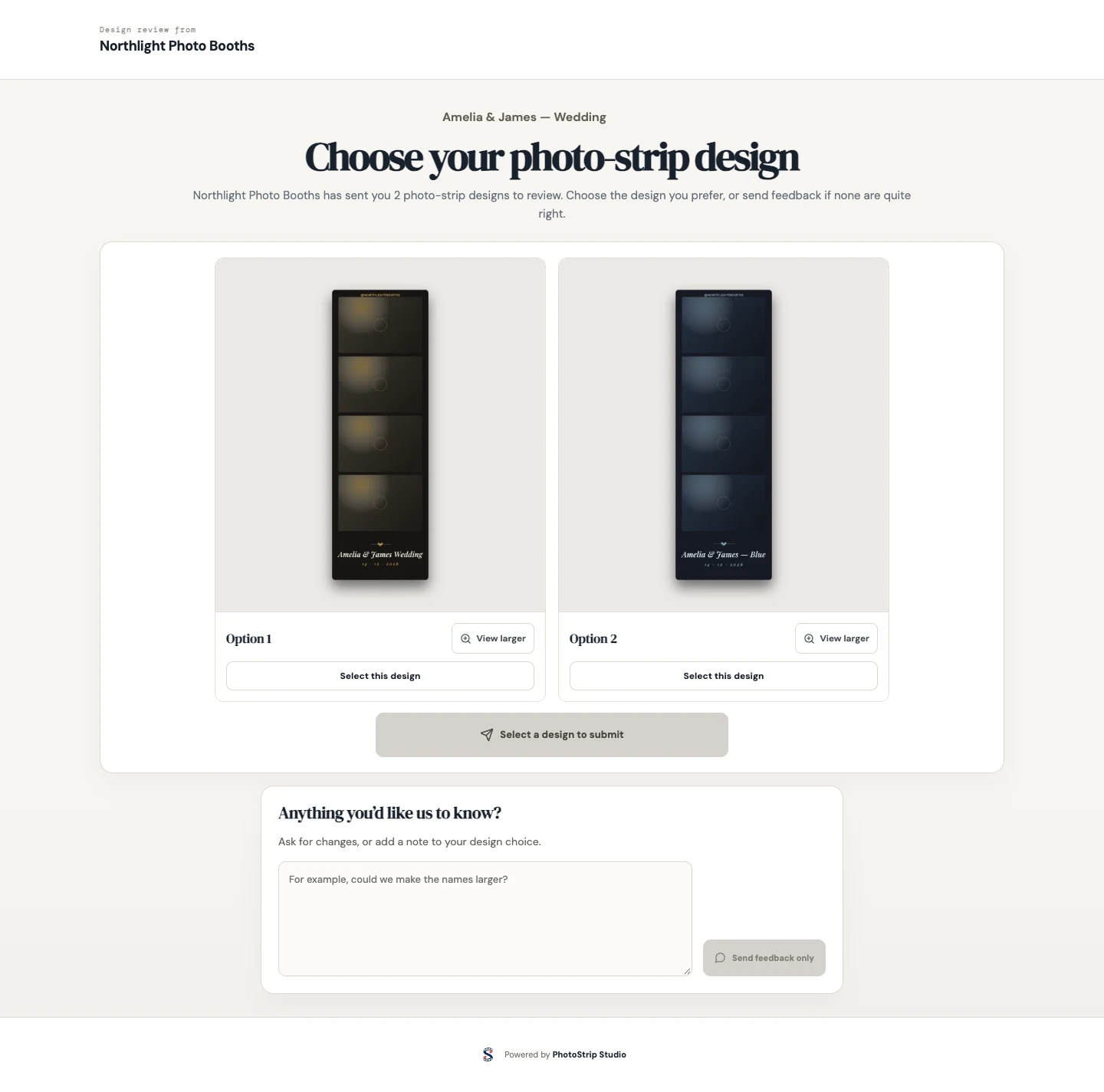
A proposal lets clients review designs you prepared. Use Client Workspaces when you want the client to create their own design instead.
Review the selection and feedback
The client can view a larger image, select a design and submit their response. They can also send feedback without choosing an option. If they include a note with their selection, both are saved together.
Open the proposal activity from the project to see the chosen design and response timeline. Review any Client note, then mark it as read after you have actioned it.
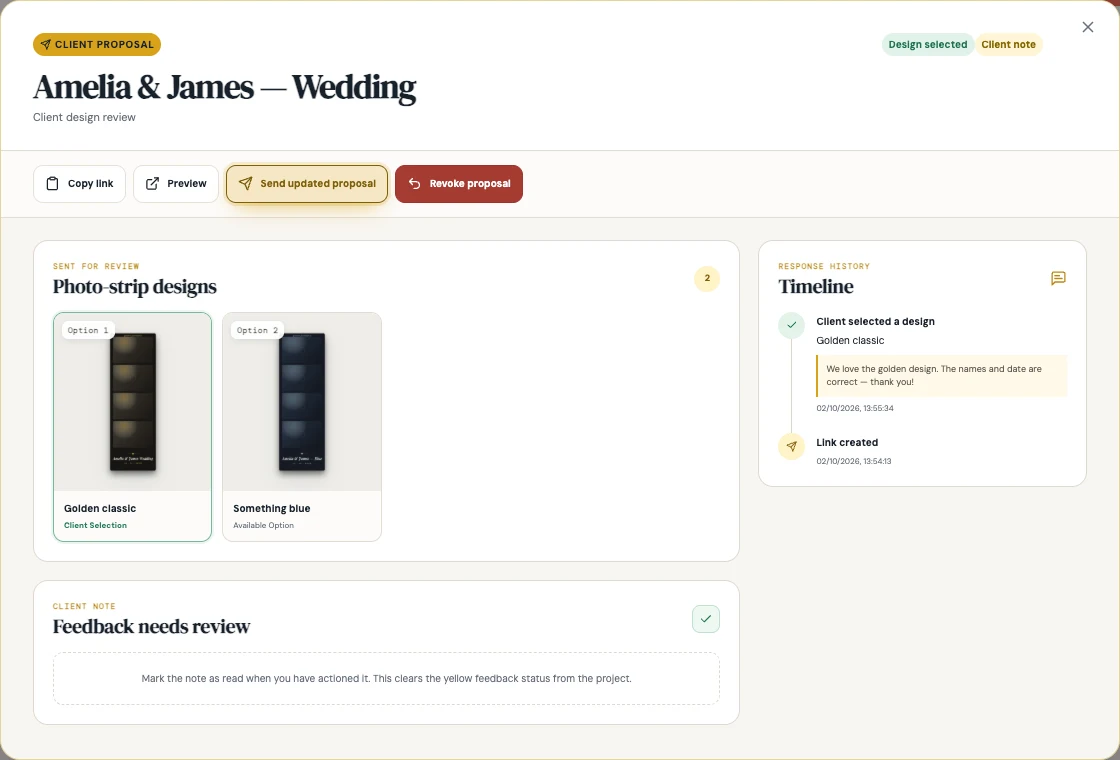
Send revisions through the same link
Edit and save the event designs, then choose Send updated proposal. Select the current options and send the update. The client keeps their existing link; earlier responses remain in the proposal timeline.
Clients can reopen their response if they need to change it. Always check the current response after a revision before preparing the event files.
Mark proposal complete records completion from your side. Revoke proposal disables that review link. These are separate actions; do not treat operator completion as a new client approval.
Common questions
Will editing a design update a proposal automatically?
Save the design, then use Send updated proposal to publish the current options through the existing review link. Editing the studio design alone is not the revision-sharing step.
Where did the client's earlier feedback go?
Open the proposal timeline to see earlier responses and revisions. Marking a note as read clears its attention status; the response stays in the history.